

Master boxes / Master boxes
Master boxes: Definition and configuration
A Master Box is a box that groups multiple products under a single barcode. By scanning this code, the system automatically identifies all products and their quantities, allowing you to register multiple items with a single scan, rather than one by one.
This mechanism is available in three processes of the fulfillment flow:
| Process | What is it for? |
|---|---|
| Reception | Register the entry of multiple products from a box in a single scan. |
| Picking | Select all products in a box at the same time during order preparation. |
| Packing | Automatically assign products from a box to a shipping carton during packing. |
⚠️ Important: Before using a Master Carton in any of these processes, you must first configure it in the platform. Without this configuration, the system will not recognize the barcode as a Master Checkout.
What do you need before you start?
- Access to the Inventory on the Fulfillment platform.
- The barcode that will identify the Master Box.
- The name descriptive for the grouping.
- The products (with their quantities) that make up the box.
Configuring a Master Box
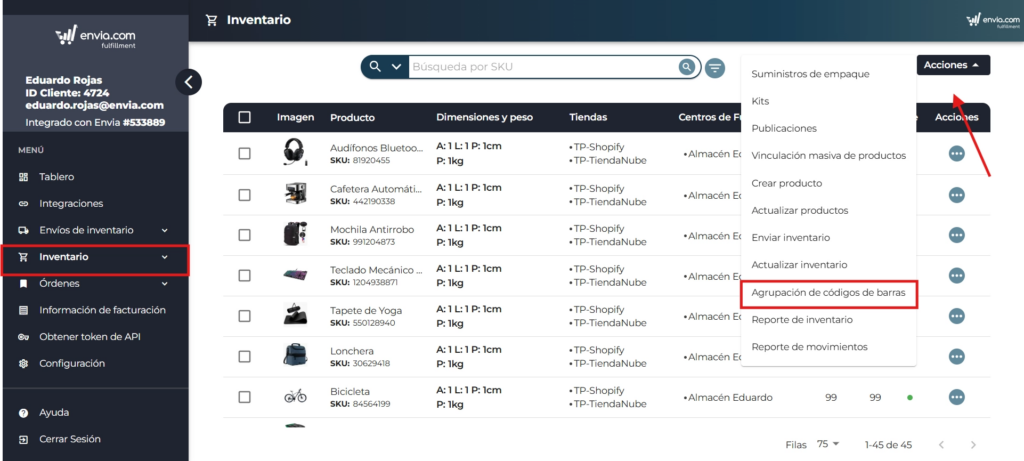
Access the barcode grouping section.
From the main menu, go to: Inventory → Stocks → Bar code grouping..
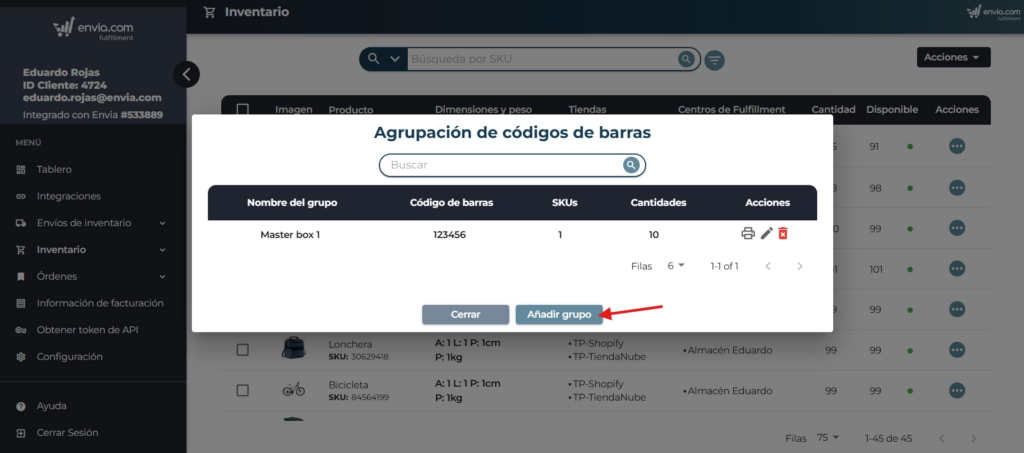
Here you will find the list of all the Master Boxes already configured in your account.
2. Create a new grouping
Click on the button “Add group”.
A form will open where you will have to fill in:
| Field | Description |
|---|---|
| Barcode | The unique code that will identify this Master Box when scanning. |
| Name | A descriptive name to easily identify the grouping. |
3. Assign the products
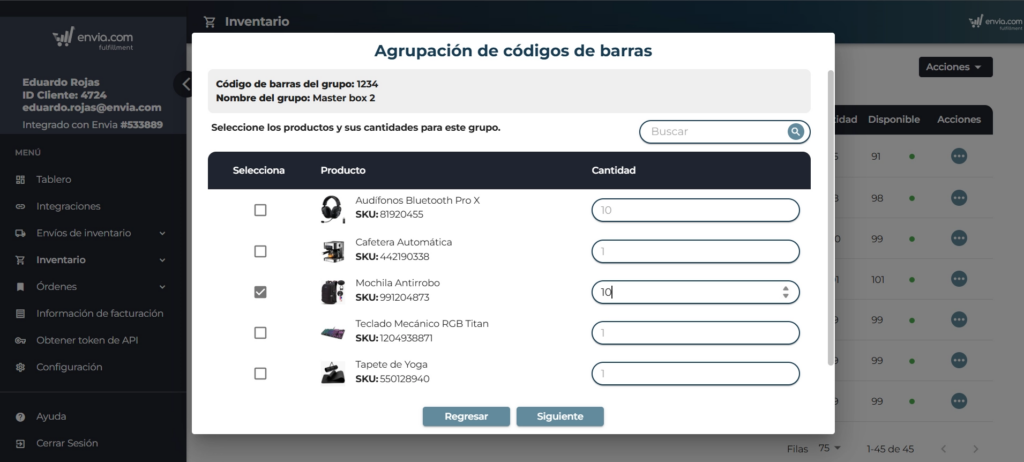
Within the same form, add the products that make up the Master Carton:
- Search and select each product.
- Indicates the quantity of each contained in the box.
- Repeat the process until all the necessary products are added.
- Click “Save” to register the Master Box.
Important notes
- You can set up as many Master Boxes as you need, as long as each one has a unique barcode.
- If you scan a code that is not configured as a Master Box, the system will process it as an individual product.
- To modify or delete an existing grouping, access again to Inventory → Stocks → Bar code grouping. and select the corresponding grouping.

Was this resource helpful to you?