

3PL / Set up 3PL
Set up billing periods and rates
Configure billing periods, payment dates, and custom services to provide your clients with a clear and automated experience.
Each warehouse can adapt its billing system according to its needs, choosing different frequencies, rates, and conditions per client.
Steps to establish the billing period
1. Login to your WMS Envia account
Go to the menu Warehouses Select the warehouse > Pricing..
3. In the section Billing type, Choose one of the following types:
- Daily: Billed every day.
- Weekly: Billed once a week.
- Biweekly: Billed every 14 days (even weeks).
- Monthly: Billed once a month.
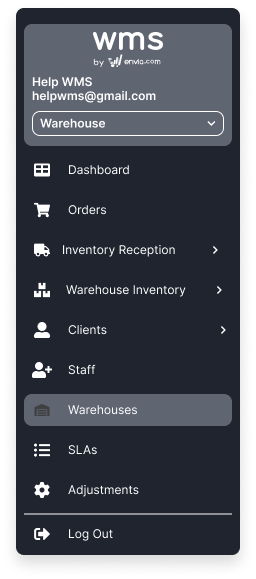

4. Define the check-in day depending on the type chosen:
- Weekly and Fourteen-weekly: Day of the week (1 to 7).
- Monthly: Day of the month (1 to 31).
5. Save the changes.
ℹ️ You can customize the billing period for individual clients from their profile.
Configure the cut-off date and payment date
Once the billing period ends, the system automatically generates a receipt for the services provided.
The payment day is set in the warehouse’s Pricing section:
- Indica el número de días que el cliente tiene para pagar tras la generación del recibo
Define custom weight ranges
- Go to Warehouses Warehouse > Rates.
- In the Weight rangessection, adjust the values as needed.
Default values:
| Size | Up to (kg) |
|---|---|
| XS | 1 |
| SM | 5 |
| MD | 30 |
| LG | 60 |
| 2XL | 200 |
| Beyond | - |
ℹ️ You can modify these ranges for both general and client-specific rates.
Configure services and rates
1. Receiving
- Choose the billing method:
- Per box: charge per number of boxes.
- By product weight: use weight ranges.
- By storage used upon receiving the product (area or floor).
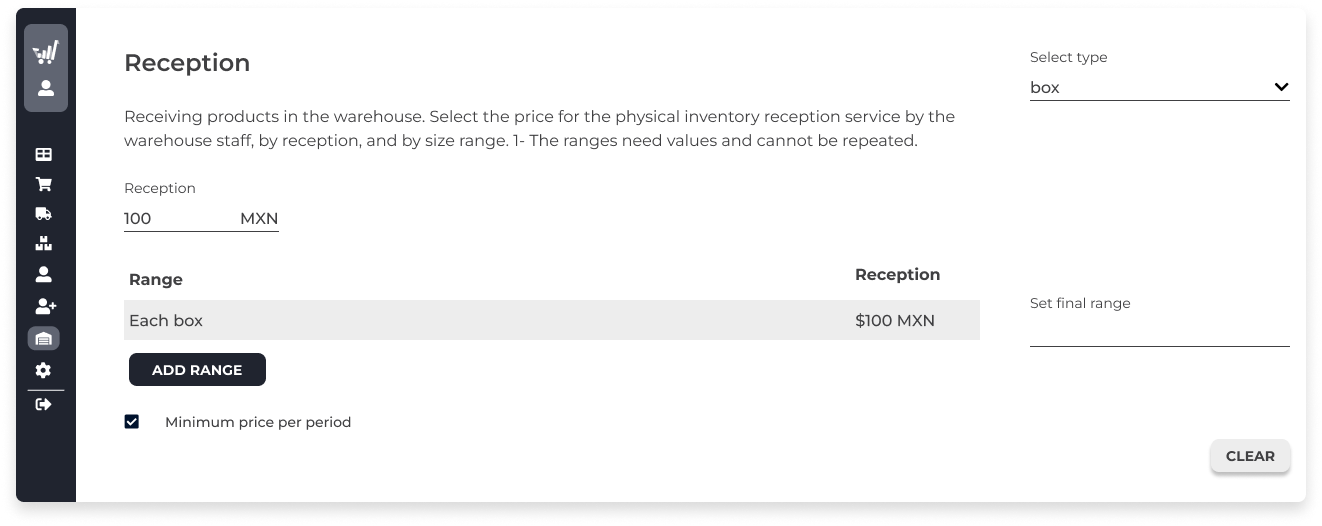
- The system calculates:
- Number of units received.
- Rate according to the selected method.
- Additional charges.
- Discounts.
- Minimum price application.
2. Storage
- Select a modality:
- By product volume.
- By area volume.
- By floor volume.
- By designated space.
- Choose the calculation method:
- Daily charge.
- Maximum value per period.
- Configure:
- Volume-based order discounts (fixed or percentage).
- Minimum price.
- Additional charges and discounts.

3. Order Processing
- Based on weight:
- The largest product is considered.
- Extra products are counted.
- A price is assigned to additional products.
4. Returns
Coming soon
5. General
Use this category for special charges that don’t fit in the others.
Add extra fees and discounts
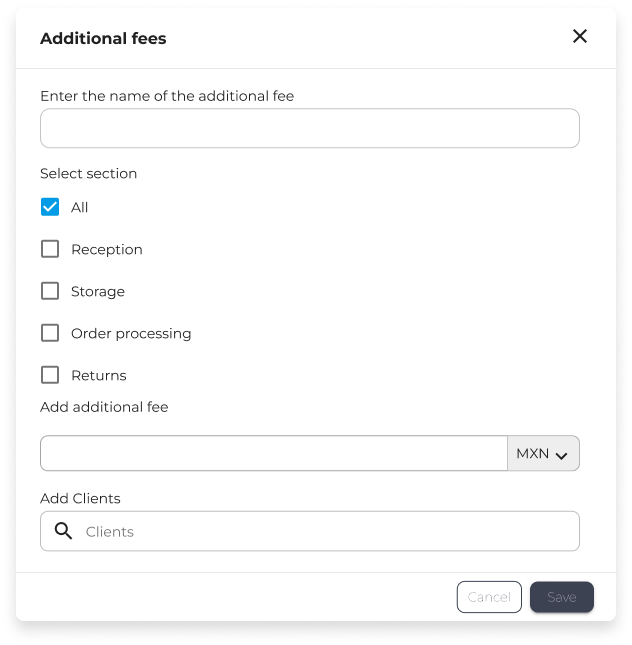
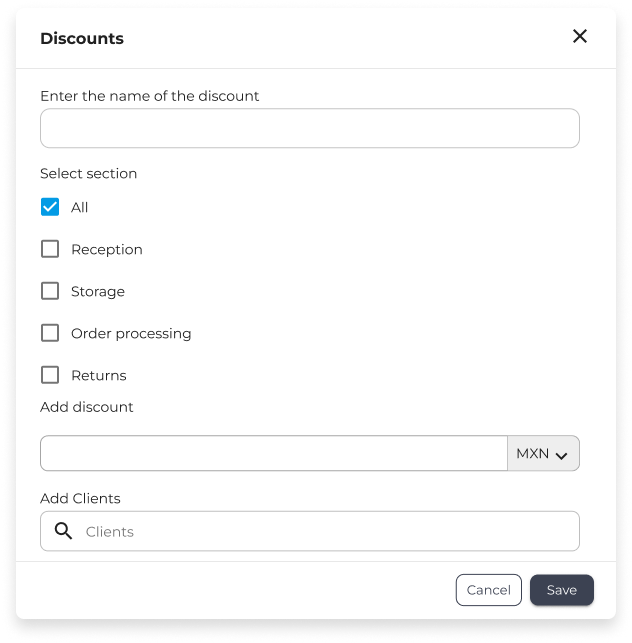
- Go to Warehouses Warehouse > Services > Extra Fees / Discounts.
- Select the category (receiving, storage, processing, etc.).
- Choose the type:
- Fixed price.
- Percentage.
- Apply globally or per client.
ℹ️ Review weight ranges and rates regularly to ensure they remain aligned with your costs and business strategy.

Was this resource helpful to you?